Add a new or edit an existing News Article and News Link
- Log into the research website at https://research.umgccc.org/user/login. If needed, you may reset your password at https://research.umgccc.org/user/password.
- Navigate to Newsroom on the yellow main menu bar (https://research.umgccc.org/newsroom).
- Click the Add News Article button to add a news item to the Newsroom page. Click Add News Link to add a link to a UMGCCC-related announcement in the media - it will be listed under UMGCCC in the Media located on the right sidebar.
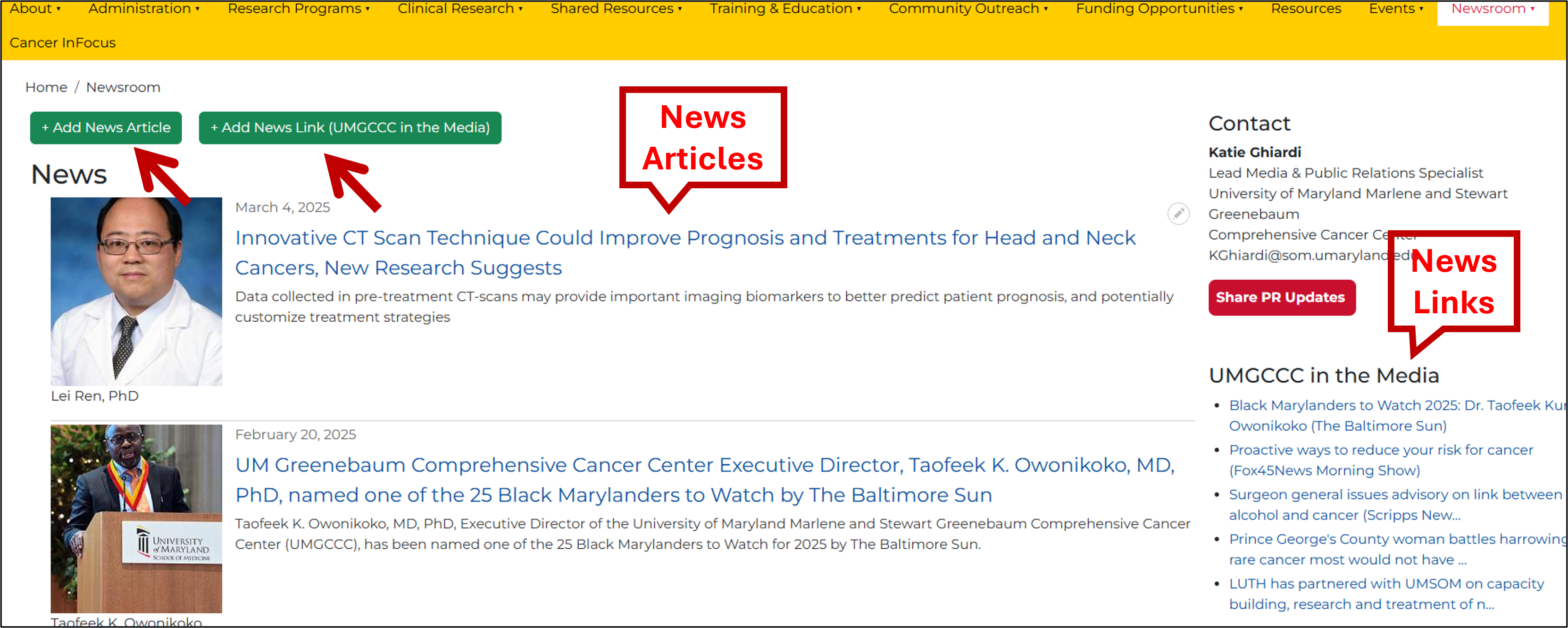
- After filling out either form, scroll down then ensure that the Published box is checked and hit Save.
To Update an existing News Article:
- Go to Newsroom and click the article you wish to update. Click EDIT to pull up it's form.
- After making your changes in the form, scroll down and make sure Published is checked then hit Save - the page goes live. If you wish to take the event page offline, simply uncheck Published and save - the page will remain in the system but is no longer live or viewable except to the editor or administrator.
- To delete an article, go to Edit (step 1) then scroll down the form and click Delete - caution: this completely deletes the content from the system and is not retrievable.