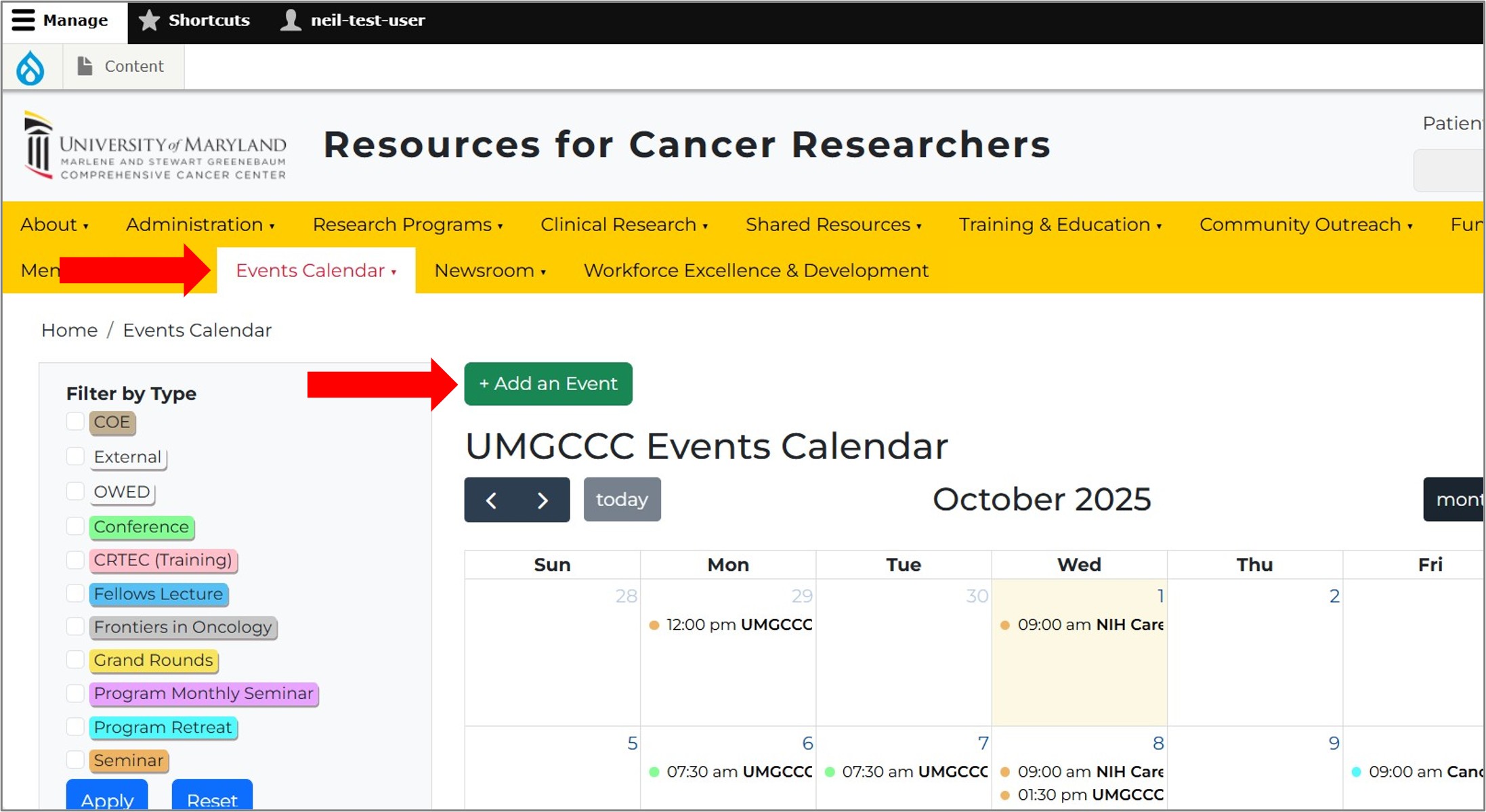
- Go to the Events Calendar from the yellow main navigation bar.
- Click the Log in to add an event button and log in using your research website credentials. If needed, click Reset your password to receive a one-time login link.
Once you're in Events Calendar, click the Add an Event button or alternatively, click Shortcuts at top left then click Add Event - this opens the Event form.
- Complete the Create Event form:
— Fill in all required fields. Note that fields marked "PUBLIC" are public-facing while those marked "PRIVATE" are visible only to logged in members and staff.
— For Faculty Candidate Seminars: select the dropdown, complete the two private fields (candidate's name and title of their talk), and enter "Faculty Candidate Seminar" in the following Title or Name of Event field.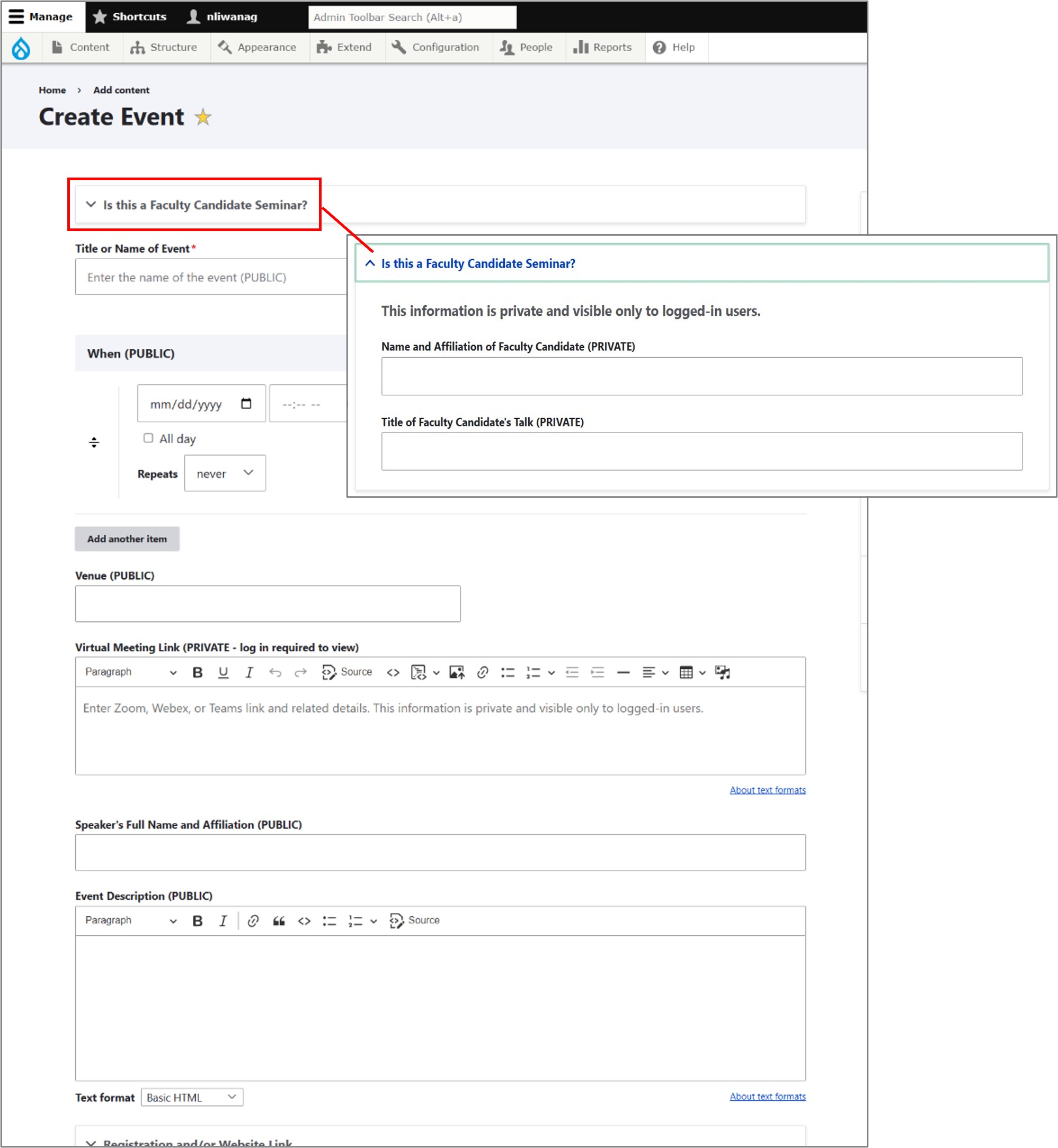
- Save your event: at the bottom, use the Save as dropdown — select Published (goes live immediately) or Draft (saved and accessible to the editor but not live).
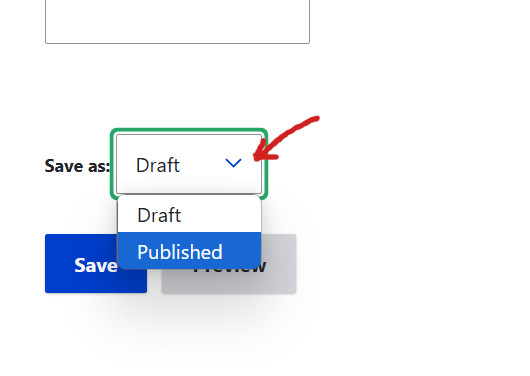
NOTE: Events submitted by Members are saved as Draft by default. Staff review and approve before publishing. Pending submissions can be viewed (with log in) at: https://research.umgccc.org/admin/content/moderated.
Update an Existing Event
- Find your event in the Events Calendar and click it.
- In the popup, click the pencil icon → EDIT.
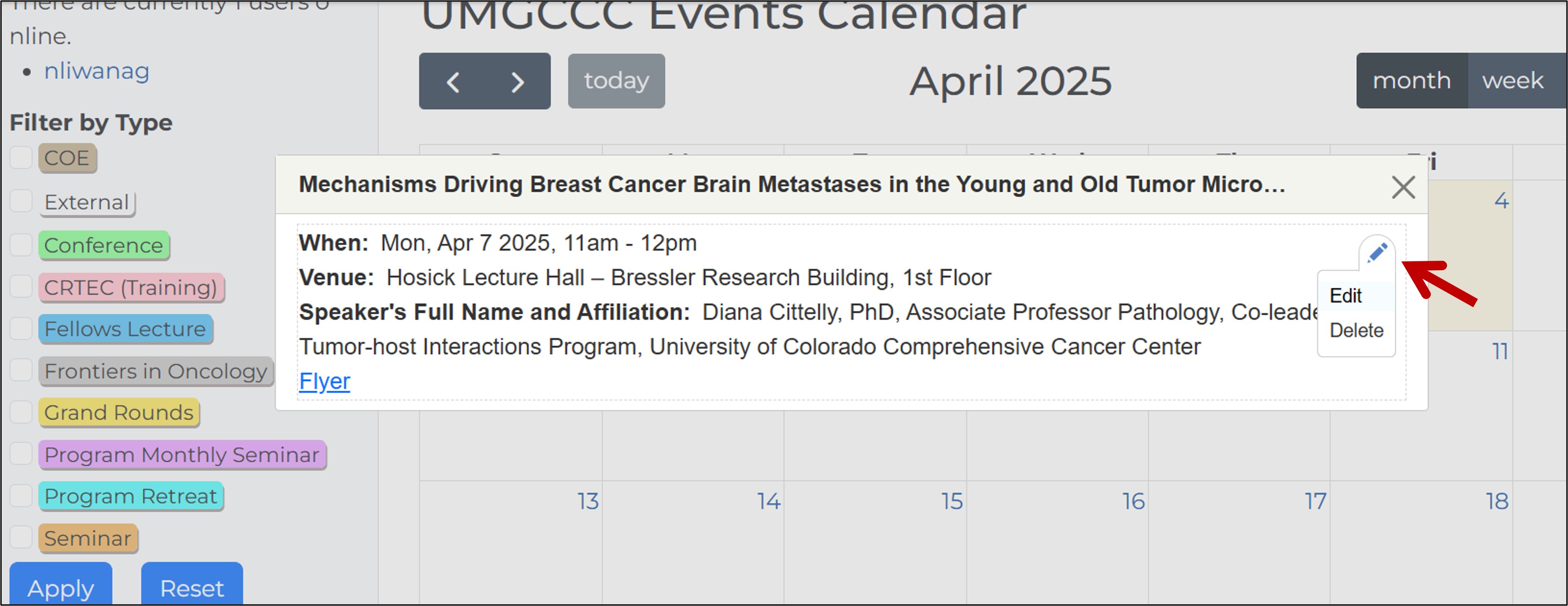
- Make your changes in the form.
- Save your changes:
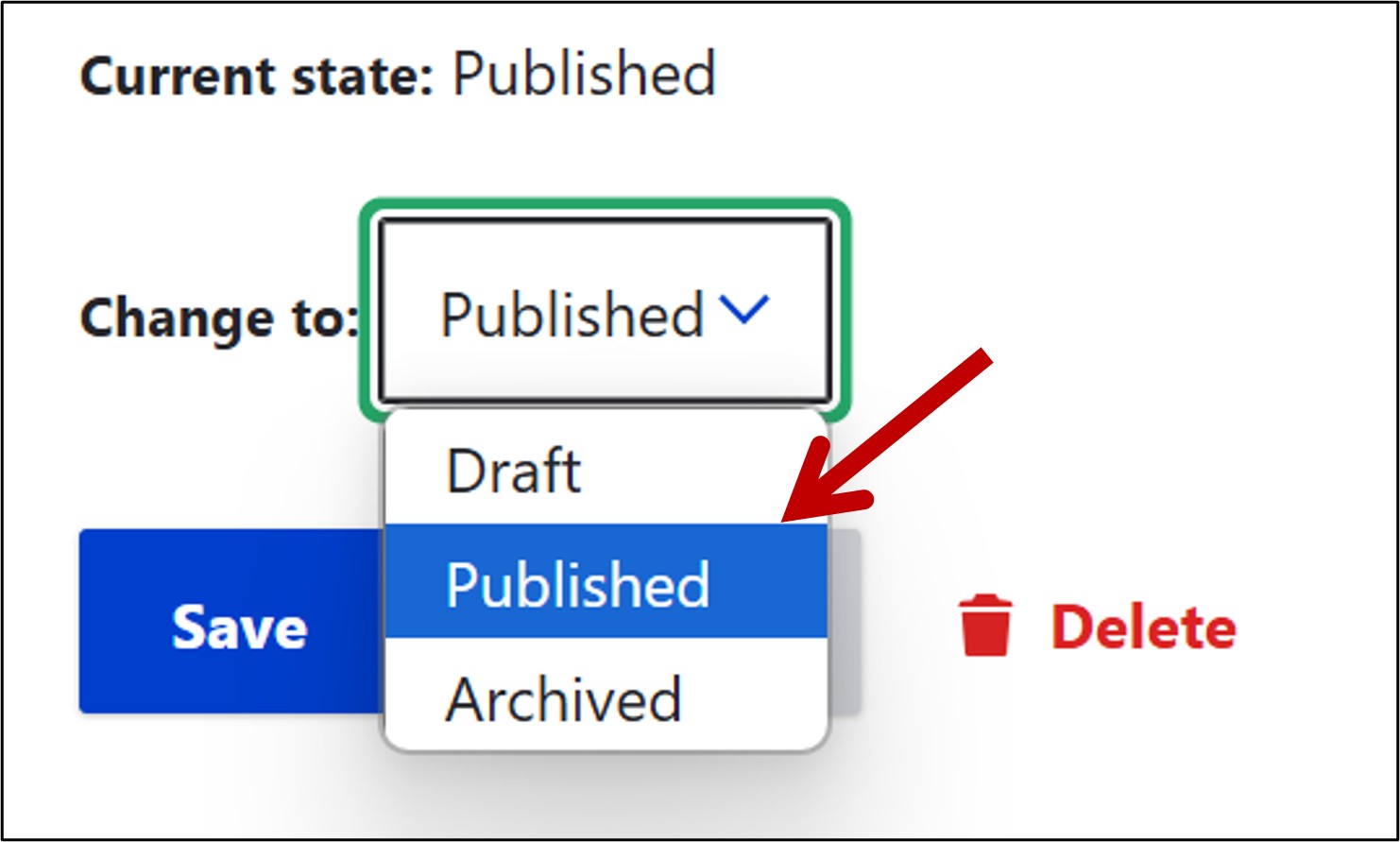
— Set Change To → Published and click Save (updates live).
— To remove from public view, set Change To → Archived and click Save (kept in system but hidden).
— To permanently delete: scroll down in the Edit form and click Delete (CAUTION: this is irreversible).